

Cloud9 is considered a less secure application, which means it doesn’t meet modern security standards, like using strong authentication methods to connect to your email account. Less secure apps typically rely on just a username and password, making them more vulnerable to hacking. As a result, Google no longer allows these apps to connect to Google Workspace (Gmail) directly.
To continue using Cloud9 with your email account, you’ll need to set up 2-step authentication on your Google account and create an app password to use in Cloud9. The 2-step authentication adds an extra layer of security, and the app password is a special, one-time code that Cloud9 can use to access your Google Workspace without compromising your main login credentials.
Below is a guide on how to set this up in your Google account, and how to configure Cloud9 once you have enabled 2-Step authentication and created an Application Password.
Note: In order to complete these steps and update Cloud9, you will need to have admin access to Cloud9.
In case you have already have 2-Step enabled and need to access part of the guides again, you can use the buttons below to jump to the section you need.
Part 1
Follow the steps below to enable two-step verification for your Google Workspace account:
Sign in to your Google Workspace (Gmail) account.
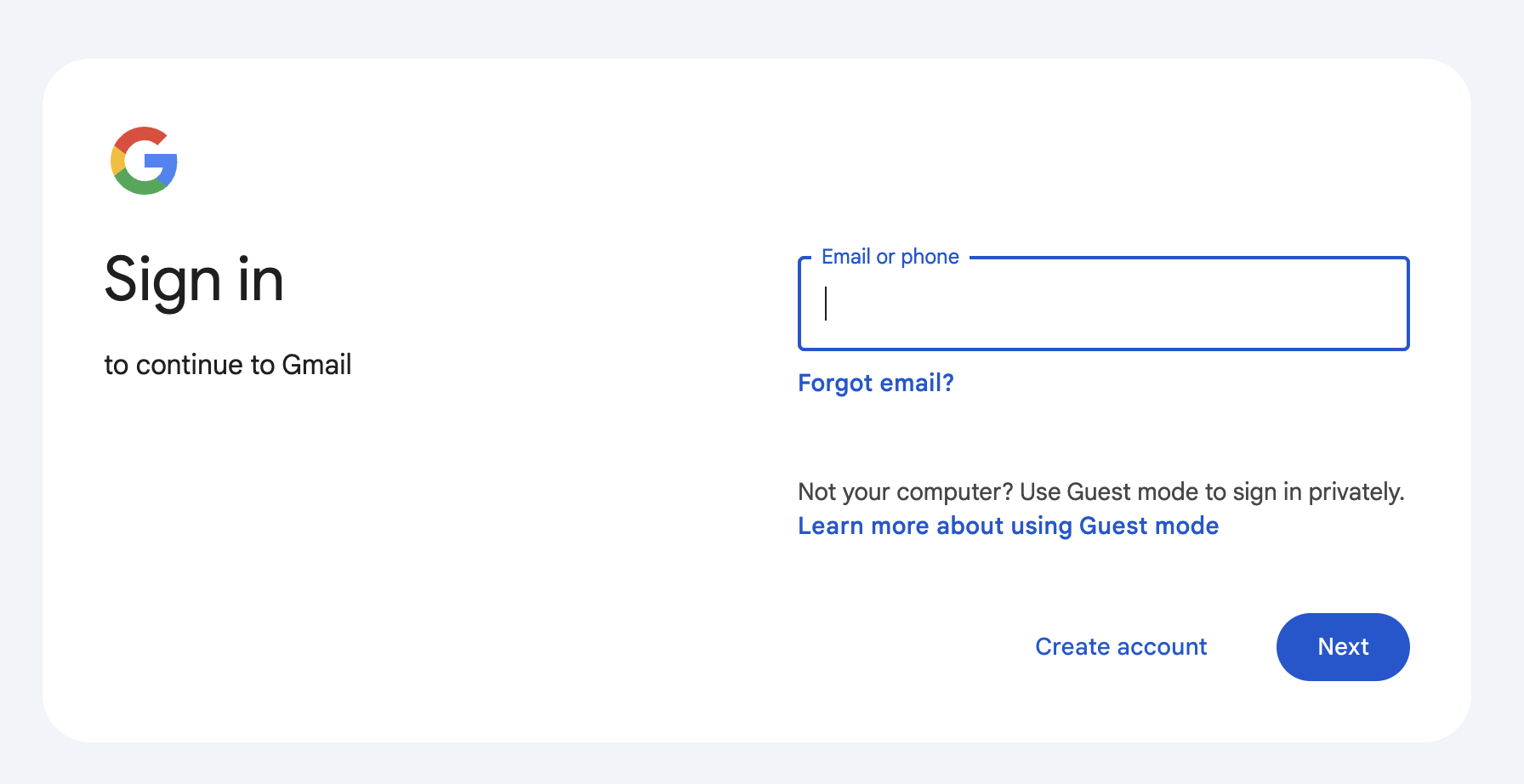
Once logged in, you can click to go to Google Account Security Settings
or
In your Inbox, click on your profile picture or initial in the top right corner of the page, then select “Manage your Google Account” from the dropdown menu.
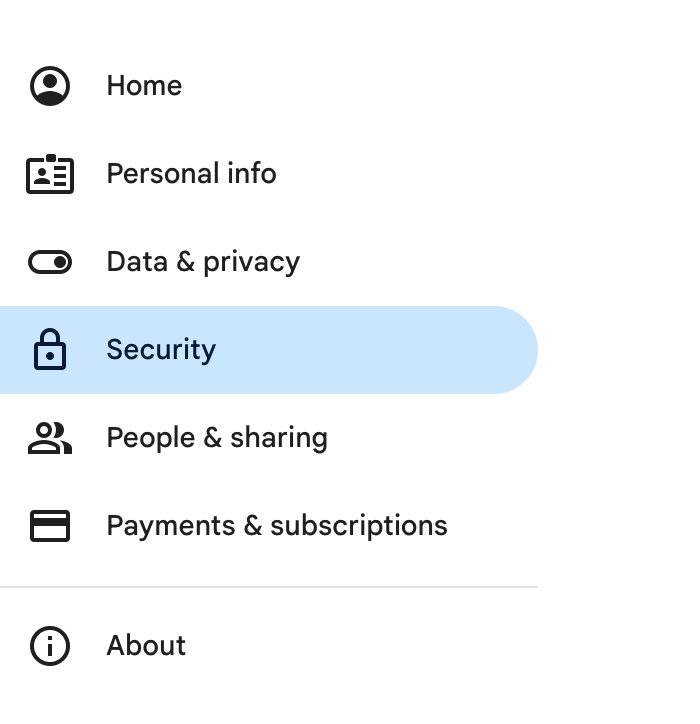
In the left sidebar, click on the “Security” tab to access the security settings.
Scroll down and click on the 2-Step Verification section.
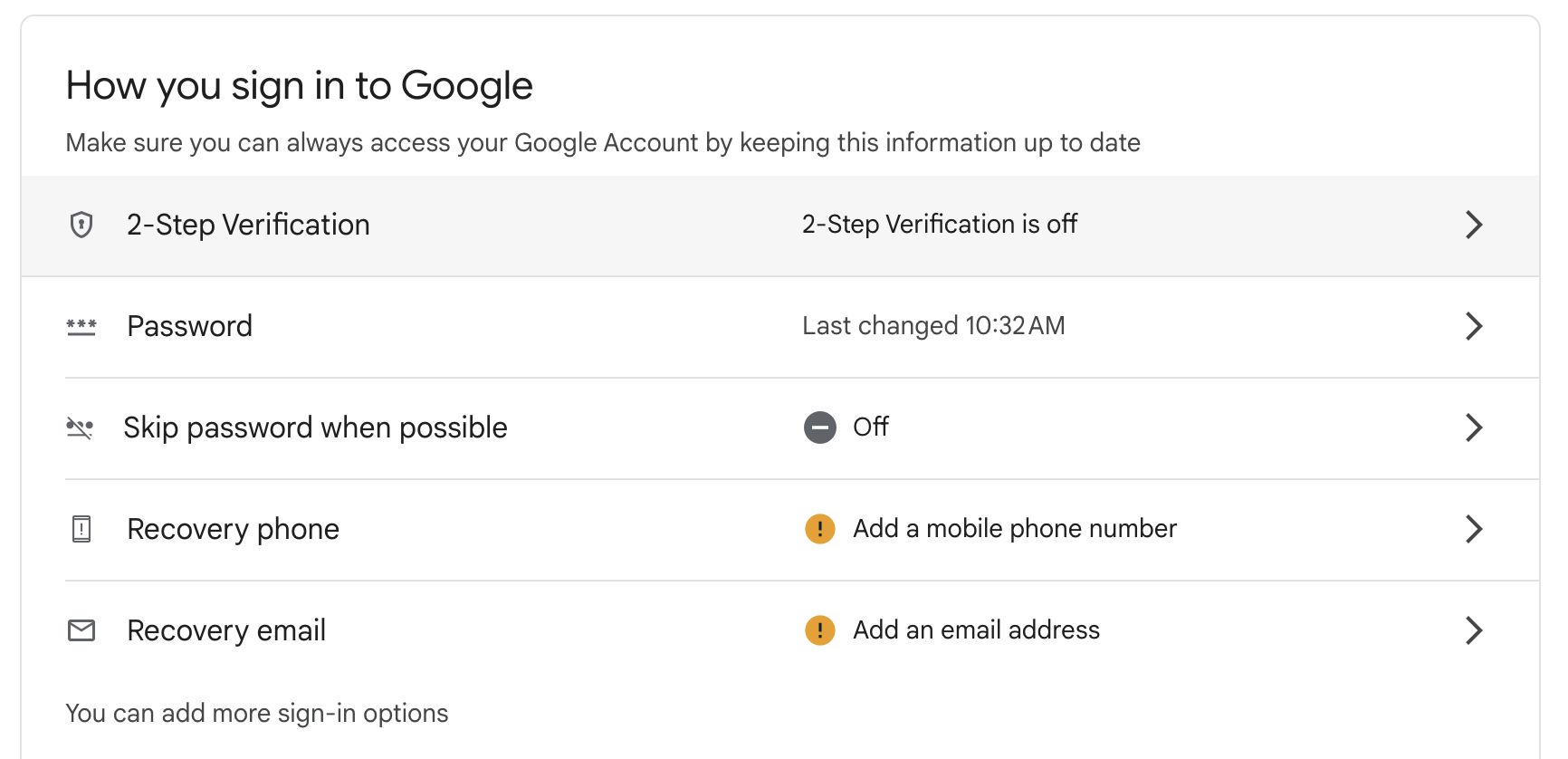
Click on Turn on 2-Step Verification. Enter a phone number to use for a text message or call and click Next
Make sure this is a number that will be accessible by any staff members who need to log into the account.
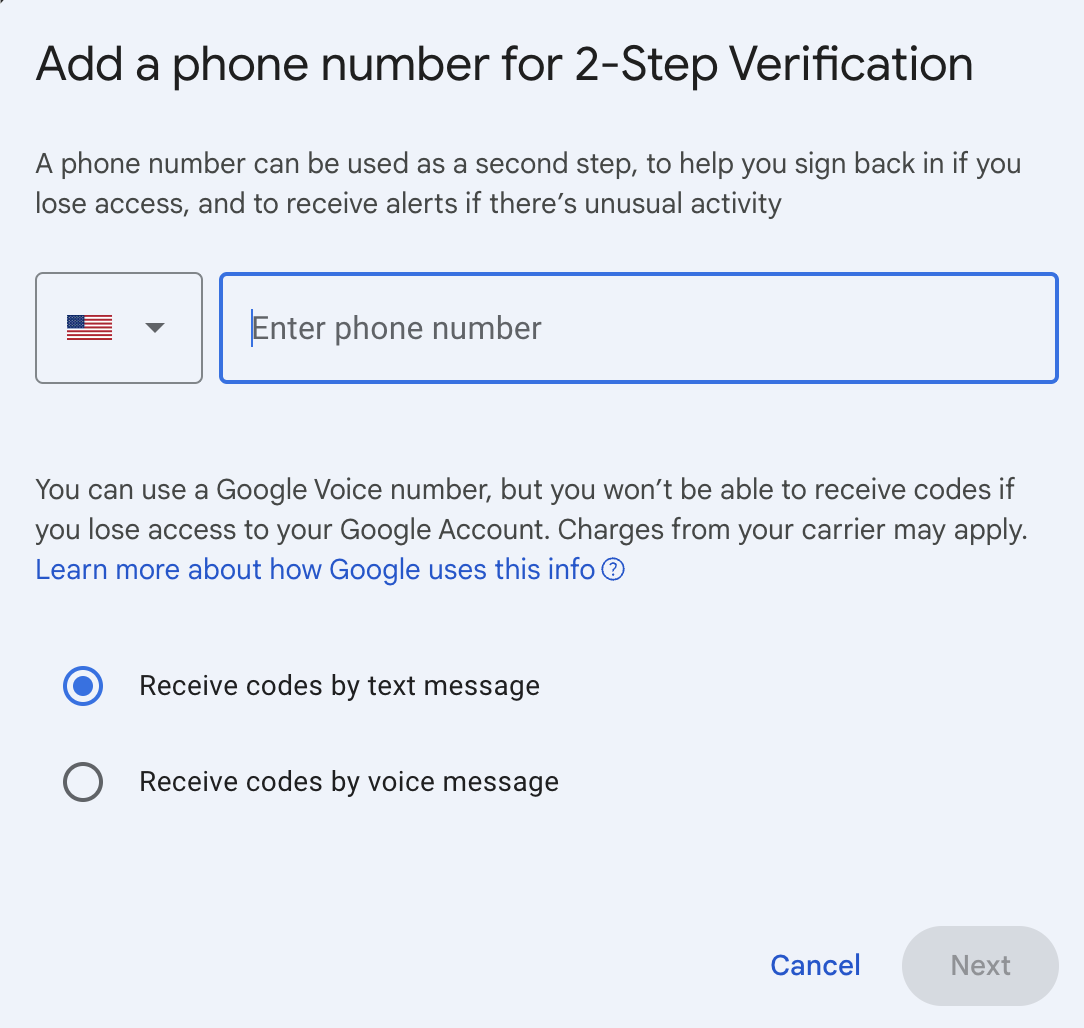
Follow the on-screen instructions to verify the phone number with a text or call.
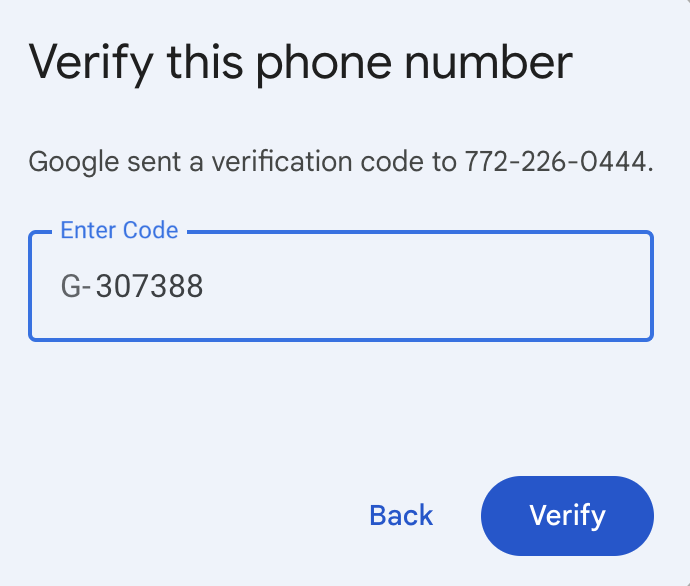
After completing the setup, two-step verification will be enabled for your account. You can add backup options like backup codes or an additional phone number in case you lose access to your primary verification method.
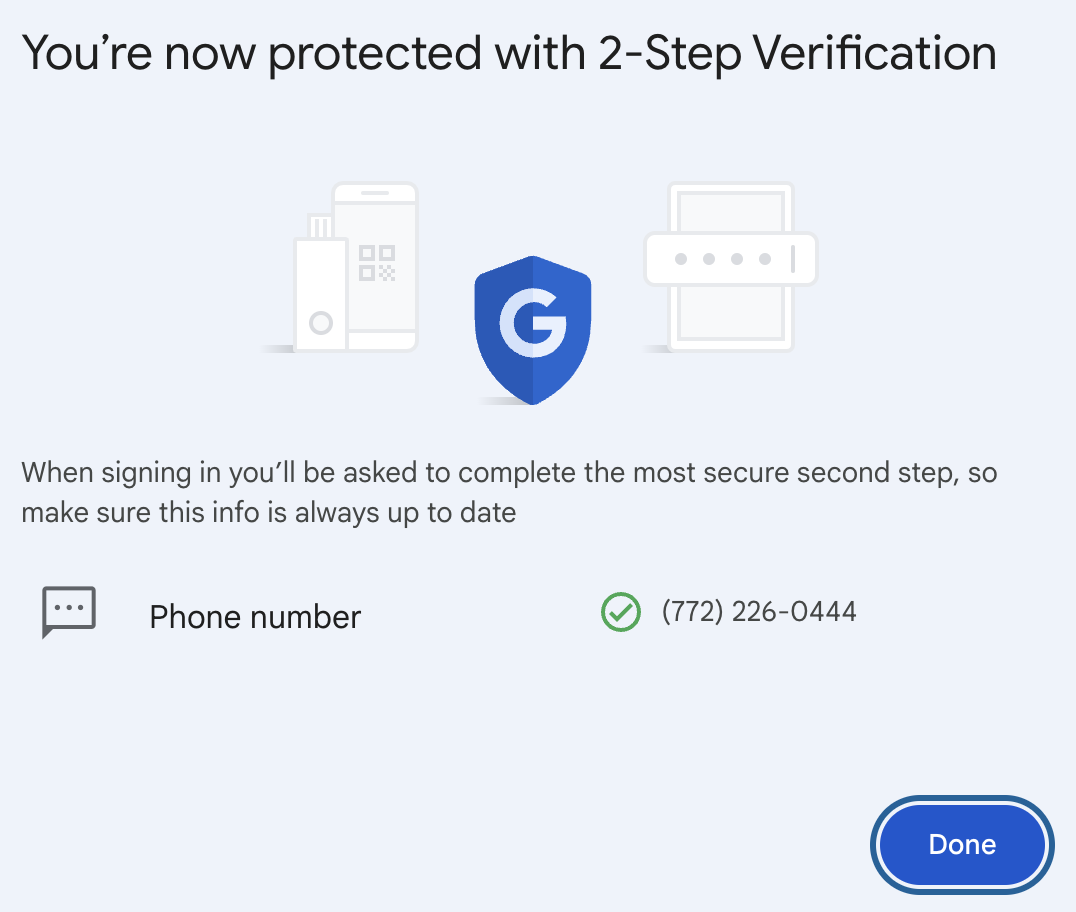
Now that you have turned on 2-Step Authentication, you will need create an App Password for Cloud9 with the guide below.
Continue to Part 2 Below
Part 2
Follow the steps below to generate a password specifically for Cloud9
Click the arrow to go back to your account settings.

Click on the 2-Step Authentication settings like you did previously. It should say that it is turned On

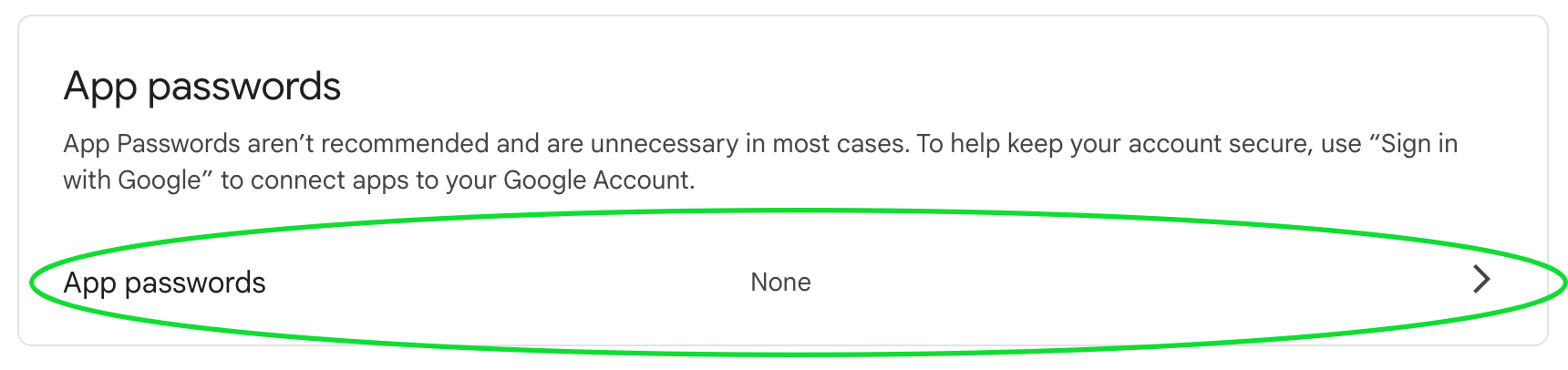
Scroll down and click on App Passwords
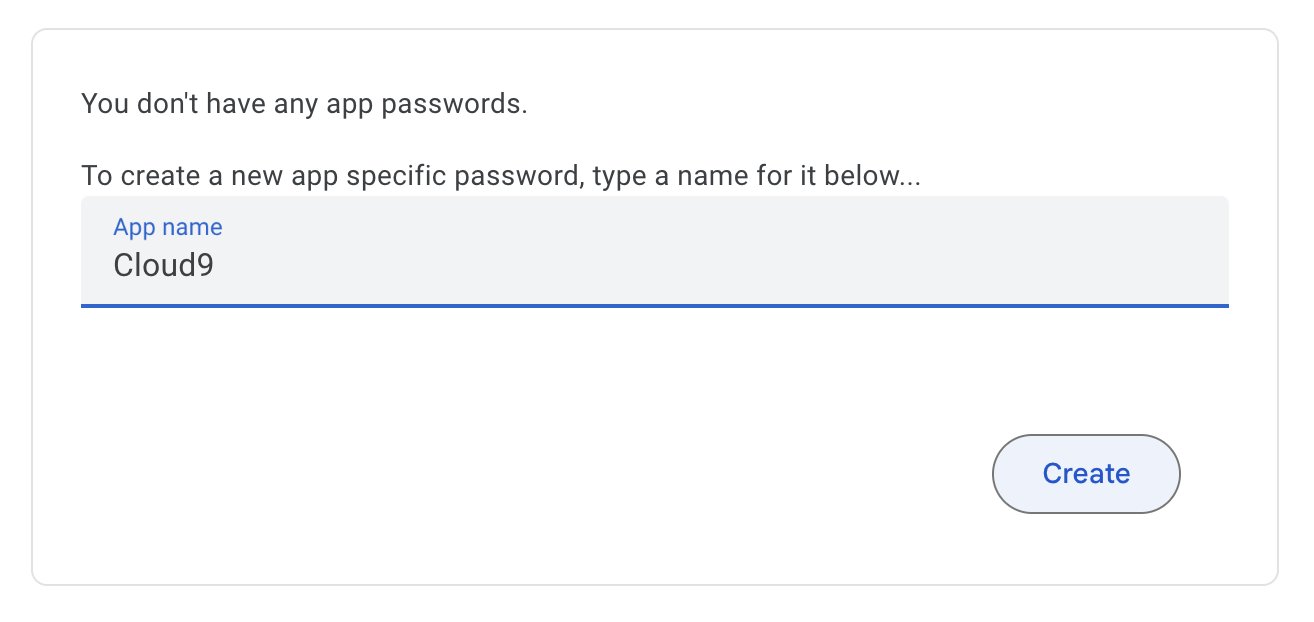
Type a name for the App Password you are creating, example: Cloud9
Click Create
Highlight to copy the password, or write it down to keep it for Cloud9
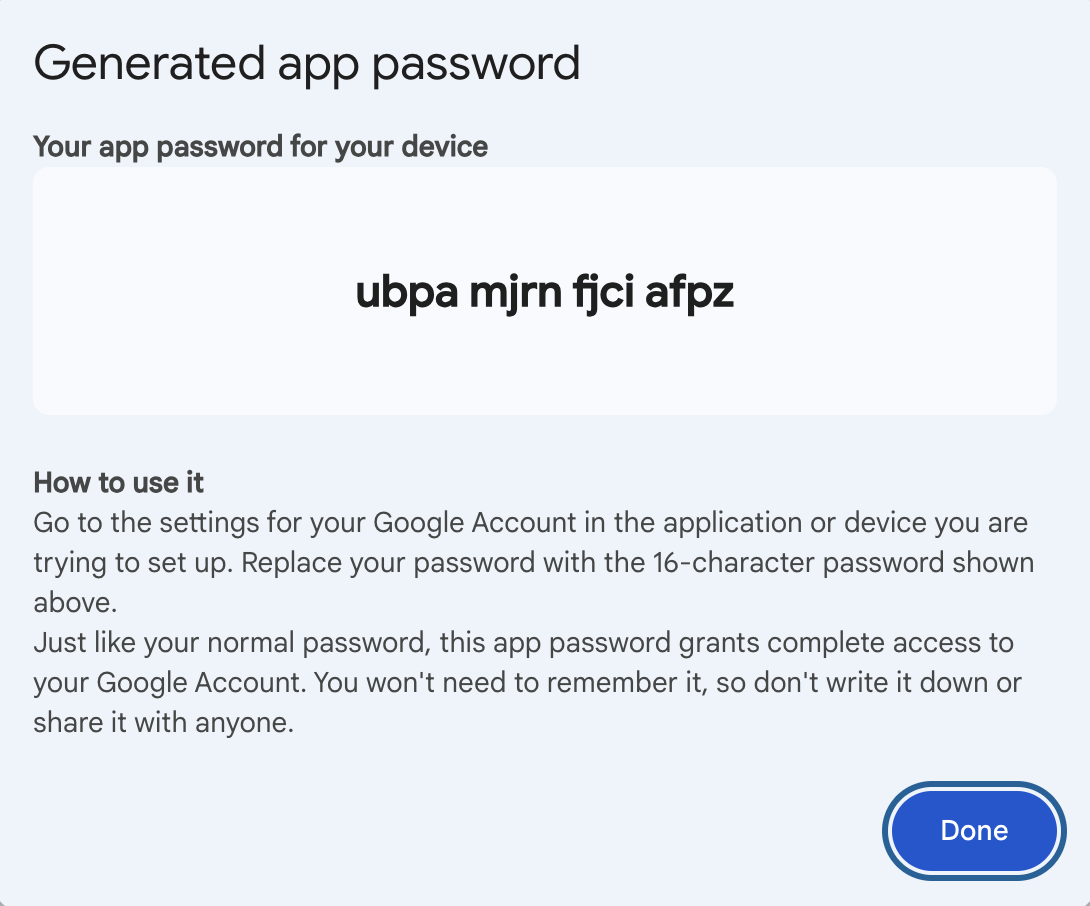
After completing the creation of the App Password, you will need to add it to Cloud9 with the guide below.
Continue to Part 3 Below
Part 3
Follow the steps below to update your Cloud9 with your generated App Password
Sign into Cloud9 with an account with Admin Rights
Depending on your Cloud9 setup, you may only be using one main practice email account for all Cloud9 employees. If this is the case, follow the Main Practice Email instructions below.
However, in addition to the Main Practice Email, if you have employees using their own email accounts, you will need to continue to the additional section following to access the infividual employee email settings.
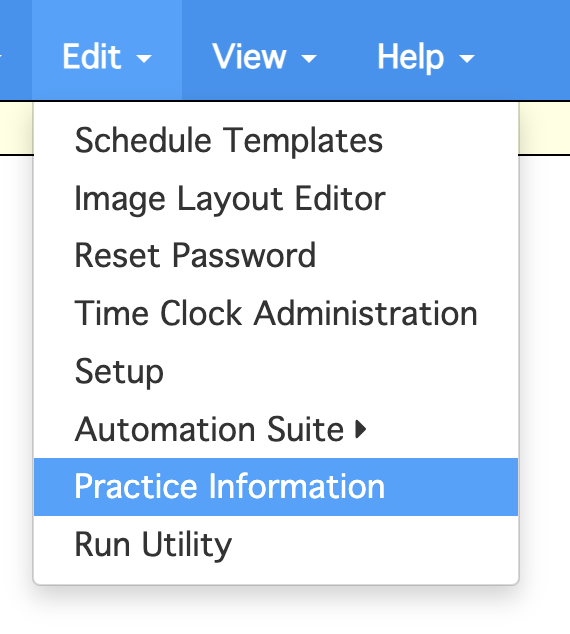
Under the Edit Menu, choose Practice Information
Note: If you do not see this option, you do not have rights to make the neccesary changes.
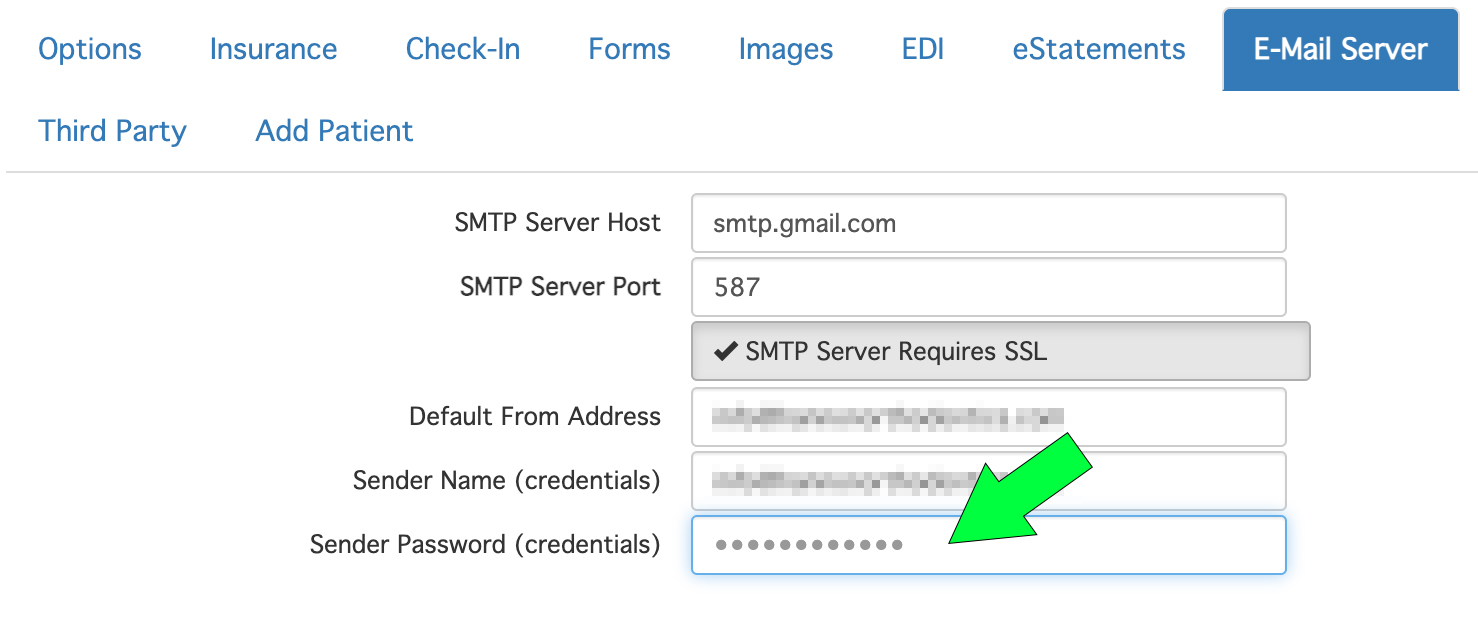
Paste or type your generated Application Password from your Google account into the Password field.
**IMPORTANT**
Remove the spaces in the password you just pasted.

Click Save and Close to finish.

If your employees are using separate accounts for their login, follow the steps below to update each employee’s email account info.
Note: You will need to go through the steps for enabling 2-Step authentication for any individual email accounts before putting their App Password into Cloud9. Each email account will have it’s own App Password to use in Cloud9.
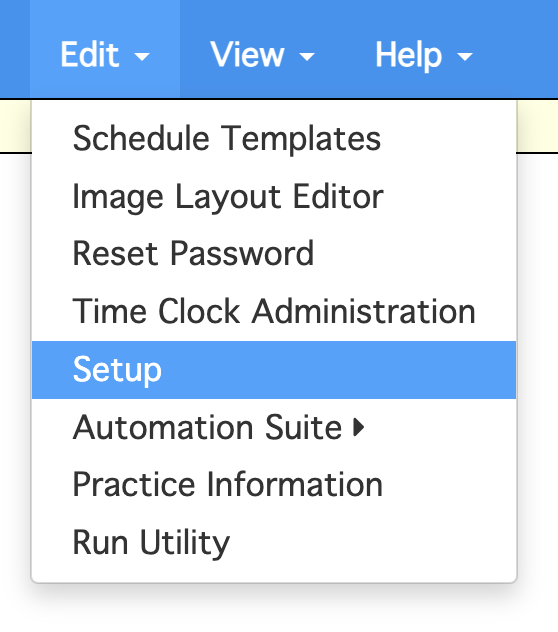
Under the Edit Menu, choose Setup
Note: If you do not see this option, you do not have rights to make the neccesary changes.
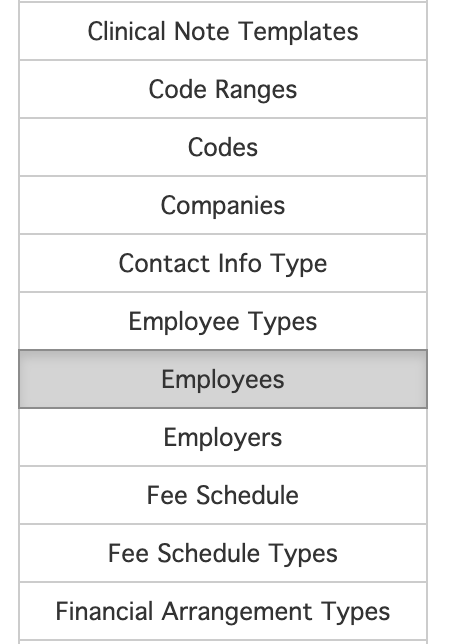
On the right side menu, choose Employees.
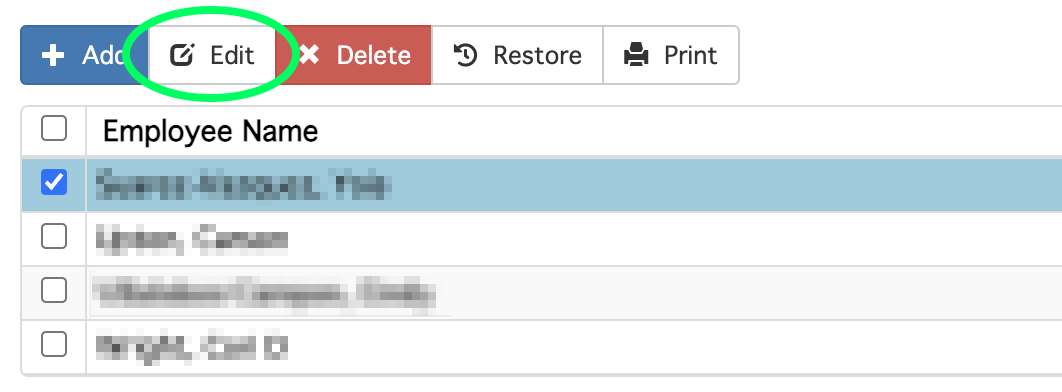
For each employee using their own email account, click the checkbox, and then choose Edit
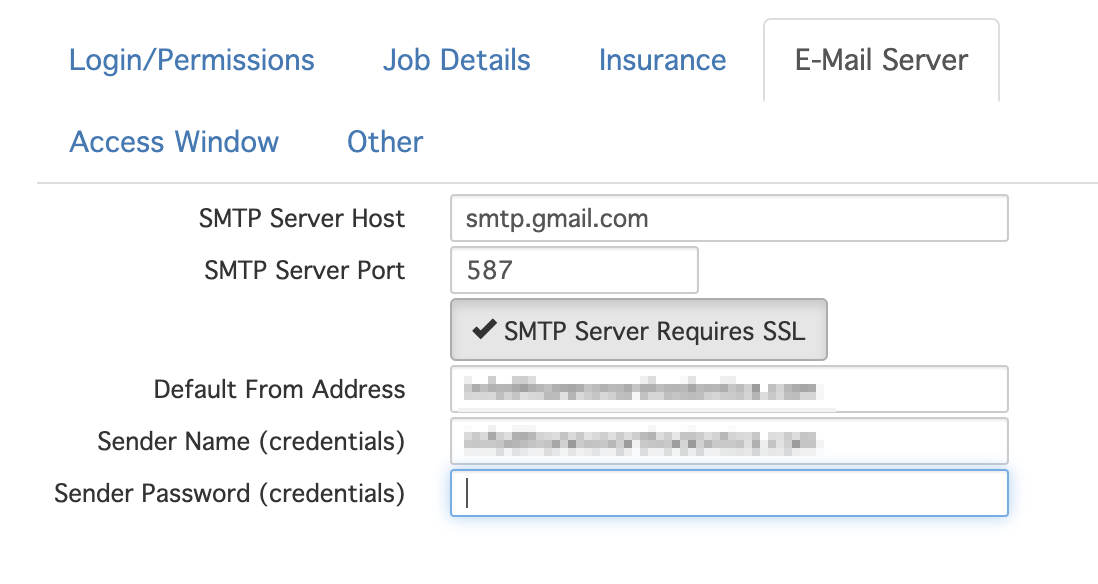
On the right side E-Mail Server tab, paste or type your generated Application Password from your Google account into the Password field.
**IMPORTANT**
Remove the spaces in the password you just pasted.
Click Save to finish.
You have completed the setup and configuration. Please send test emails how you normally would, or attempt to email a patient to confirm success.